Setup
Up and running in minutes.
Set up Perch once and your App Store numbers live in your menu bar from then on. Five minutes start to finish, less if you've made an App Store Connect API key before.

I'll guide you through. Apple's UI gets a bit cluttered, but we'll find each piece together.
Before you start
You'll need:
- A Mac running macOS 14 or later, with Perch installed.
- Account holder, Admin, or Finance access on your App Store Connect team. Apple only lets those roles create API keys.
- About five minutes.
Generate an App Store Connect API key
This is the trickiest step. Apple buries it three clicks deep. Worth it though.
Sign in to App Store Connect and follow the path above. The Integrations tab sits along the top of the page; App Store Connect API is in the left sidebar once you're on that tab.
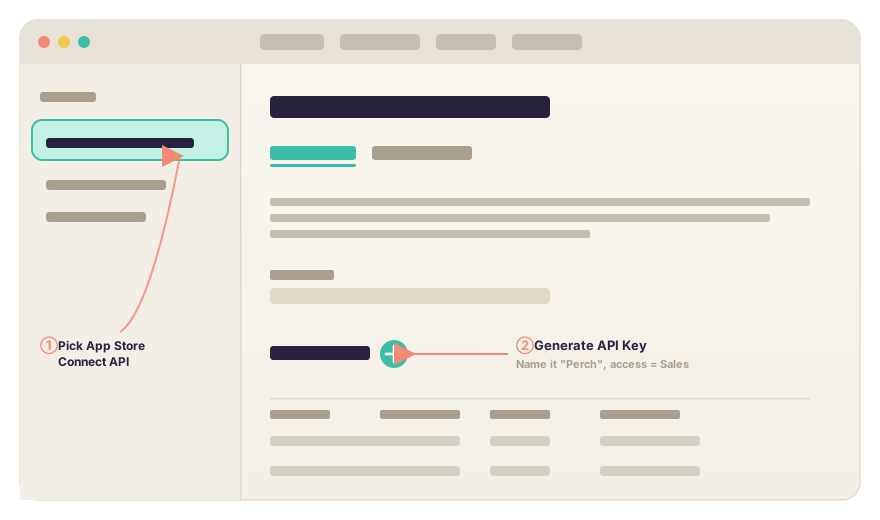
Apple creates the key and gives you three things you'll need:
- Issuer ID UUID at the top of the page, above the keys list.
- Key ID Ten characters, shown in the new key's row.
- .p8 file Click Download API Key. Apple only lets you do this once — save it somewhere safe.
Find your Vendor Number
Still in App Store Connect, head to Payments and Financial Reports. Your Vendor Number is shown at the top of the page. Eight digits.
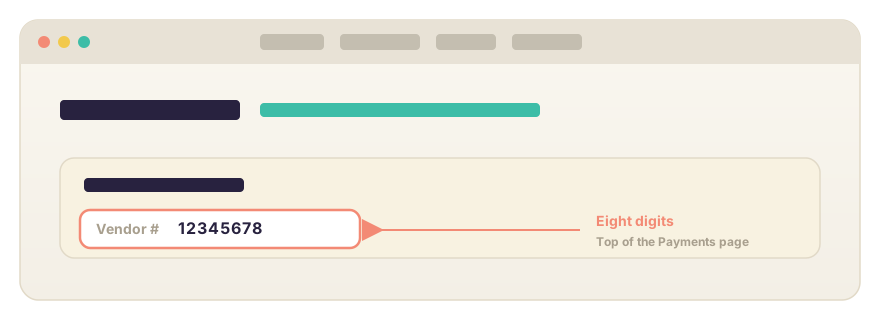
Hidden on a different page entirely. Apple, why.
Paste it all into Perch
My favourite step. The one where I get to do my actual job.
Open Perch from your menu bar and click the gear in the top right of the drawer. Settings slides in from the right.
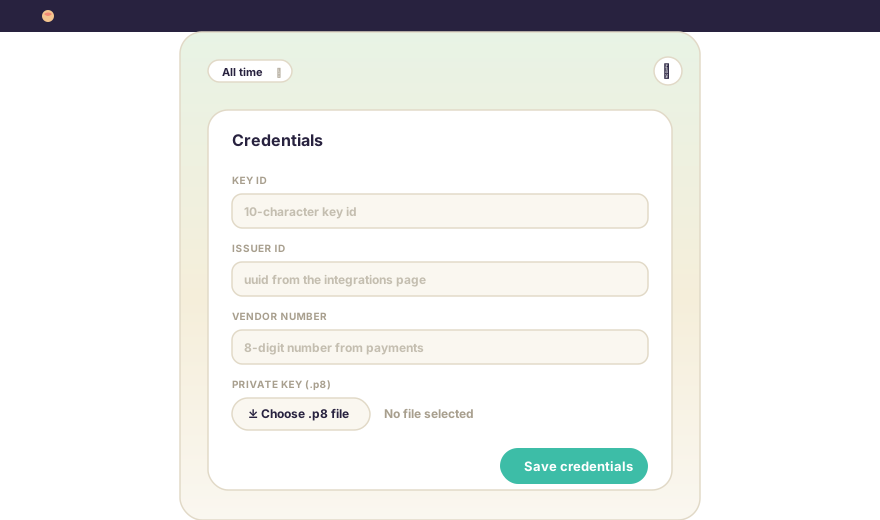
- Key IDPaste from step 1.
- Issuer IDPaste from step 1.
- Vendor NumberPaste from step 2.
- .p8 fileClick Choose .p8 file and pick the one you downloaded.
Hit Save. Perch encrypts everything into your macOS Keychain. We never log it, export it, or send it anywhere.
First sync
Perch will pull your apps, your sales for the last year, your recent reviews, and your app statuses. The first sync takes a minute or two because it walks back through up to 365 days of daily reports.
After that, syncs are quick. Perch checks every few minutes for new reviews and status changes, and pulls the latest sales report once Apple publishes it each day.
I'll be flying through a year of reports. Put the kettle on.
Something went wrong?
Don't stress. Most fixes are a typo away.
If the diagnostics show a red flag, the most common causes:
- Issuer ID or Key ID typed wrong. They're long. Easy to drop a character.
- Wrong .p8 file. If you have several, double-check you picked the one matching this Key ID.
- Vendor Number missing. Without it, Perch can't pull sales reports. Reviews and app status will still work.
- Key revoked. If you regenerated the key in App Store Connect, the old one stops working immediately.
If you're stuck, send a note. Plain English description of what's happening, and we'll write back.
Privacy, in case you're wondering
Your credentials live in macOS Keychain, encrypted by the system. Perch reads them locally to talk directly to Apple's servers. There's no Perch server in the middle, no analytics, no trackers. Your sales data, reviews, and credentials never leave your Mac.
More on the privacy page.